
Plugin Help
1. Software Installation
After downloading the installation package, close all running Microsoft Office-related software such as Word, Excel, PowerPoint, etc., then double-click the setup.exe file in the installation package and follow the installation prompts to complete the software installation.
Notes:
- Before installation, if you have already installed the "SimpleTex Word Plugin System Software", please perform a complete uninstallation via the Control Panel;
- If antivirus or other security software prompts security issues during the installation process, please allow it. The SimpleTex Word Plugin System Software contains no viruses or functions that affect security, so you can install it with confidence;
- The installation process requires reading and writing to the system registry. If security software prompts a warning, please select "Allow all operations" or a similar option.
- For older versions of Word and WPS, it may be necessary to install the .Net Framework runtime and Visual Studio Tools for Office 4.0. Please download them from the official website.
System Requirements: Windows 7, Windows 10, Windows 11
2. System Interface and Functions
Main Menu and Ribbon

Figure 2.1 Main Menu Interface

Figure 2.2 Ribbon Interface
3. Function Description
3.1 Screenshot Recognition
(1) Click "Screenshot Recognition" (default shortcut key: Ctrl+Left Shift+Z). The Word software will be automatically hidden, and the system will display the screenshot tool interface. Capture the image area to be recognized according to the operation prompts.
(2) After confirming the captured image, the system will return to Word, start automatically recognizing the screenshot, and insert the recognized content into the current Word document automatically.

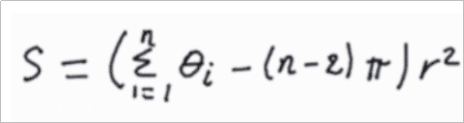
Figure 3.1 Screenshot Recognition Interface
Notes:
- To cancel during the screenshot process, press the right mouse button or the ESC key;
- User login is required to operate this function;
3.2 Paste Image Recognition
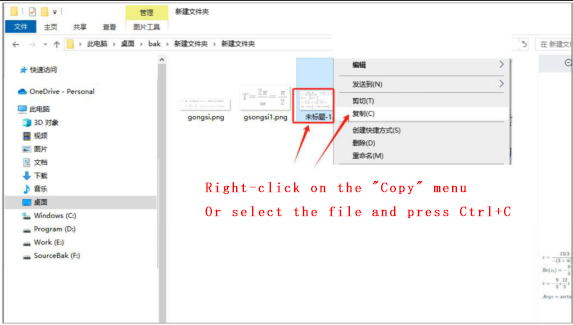
- In the operating system, select any image file and click "Copy";
- Return to "Word" and click "Paste Image Recognition" (default shortcut key: Ctrl+Left Shift+X);
- The system will start automatically recognizing the screenshot and insert the recognized content into the current Word document automatically.
Notes:
- The copied image formats only include JPG, PNG, BMP and other image formats.
- User login is required to operate this function;

3.3 Recognize Selected Image
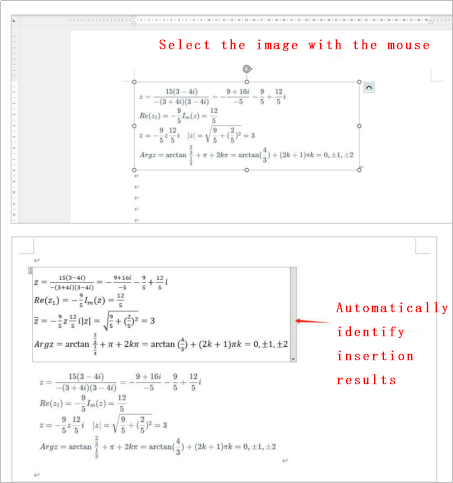
- In an open Word document, select an image (click the image to select it);
- Click "Recognize Selected Image" (default shortcut key: Ctrl+Left Shift+C). The system will start automatically recognizing the screenshot and insert the recognized content into the current Word document automatically.
Notes:
- User login is required to operate this function;

3.4 PDF Recognition
Usage is the same as the official website
3.5 PDF Translation
Usage is the same as the official website
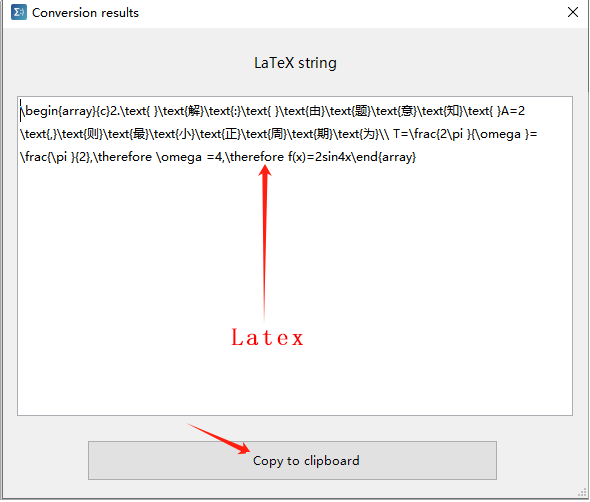
3.6 Copy as LaTeX
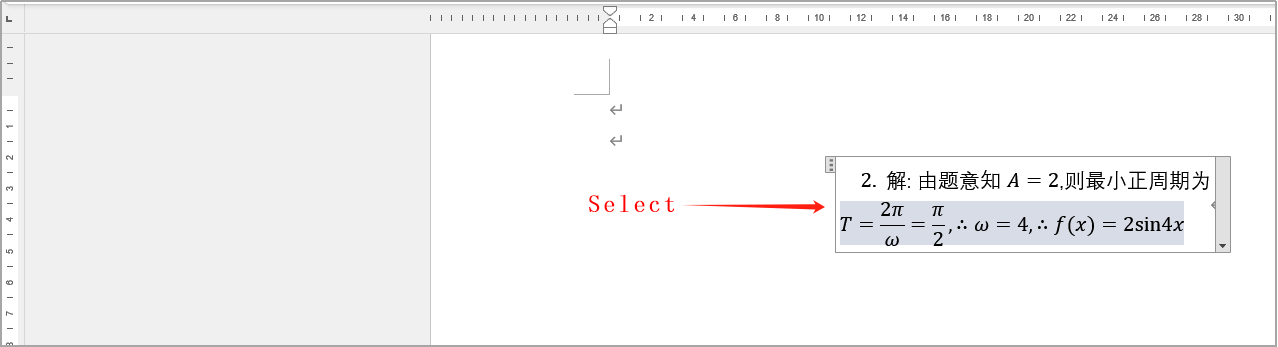
(1) In an open Word document, select a formula;
(2) Click "Copy as LaTeX";
(3) A window will pop up to select the LaTeX expression string of the formula;

3.7 Insert LaTeX Formula
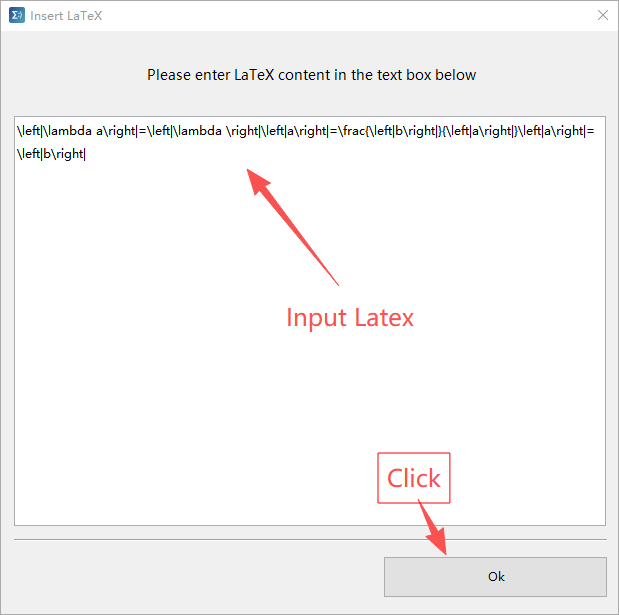
(1) Click "Insert LaTeX Formula"
(2) Enter the LaTeX expression as prompted, then click "OK"
(3) The formula will be automatically inserted into the Word document


3.8 Insert Markdown
(1) Click "Insert Markdown"
(2) You can select an MD file or write the MD source document yourself
(3) Click "OK", and the MD source document will be directly converted to Word format and automatically inserted into the current Word document

3.9 Formula Editor
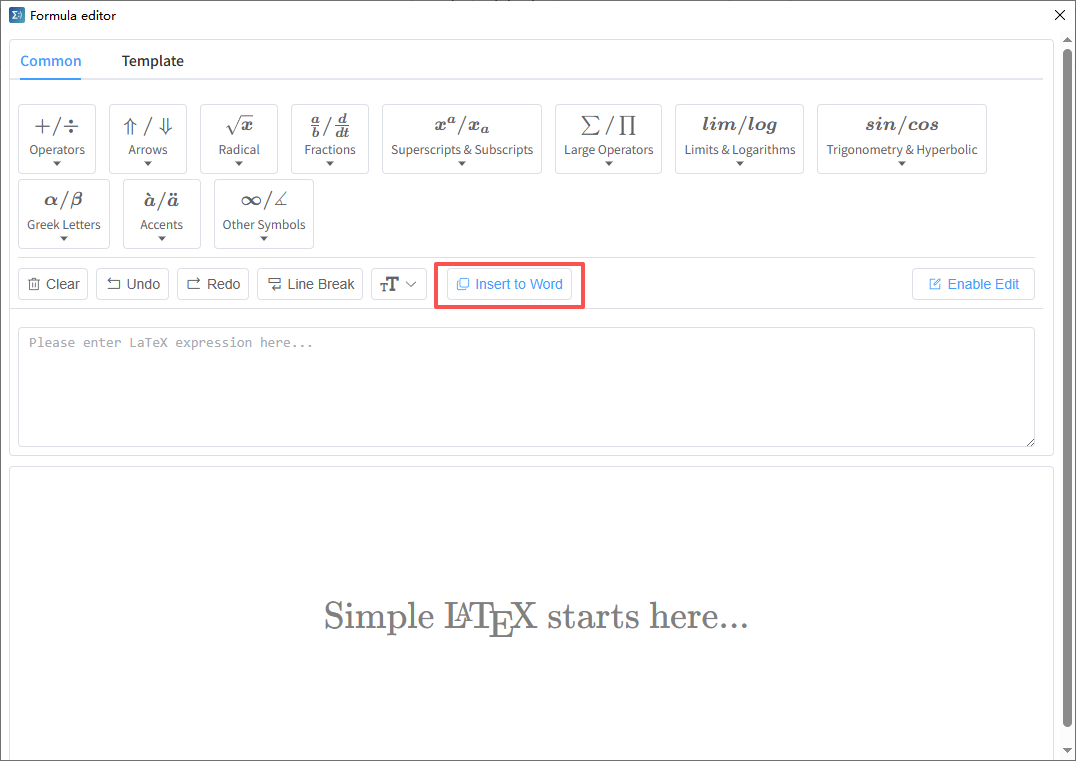
(1) Click "Formula Editor" and follow the prompts to operate
(2) After completing the formula editing, click "Insert to Word", and the edited formula will be automatically inserted into the current editing document

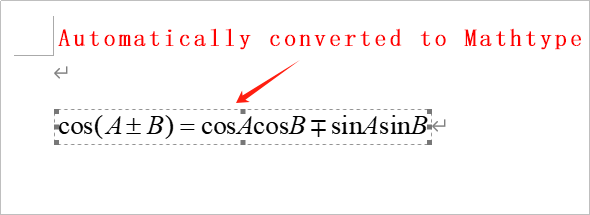
3.10 Convert to MathType
(1) Select the formula in the document
(2) Click "Convert to MathType", and the program will automatically convert the selected formula in the document to MathType format
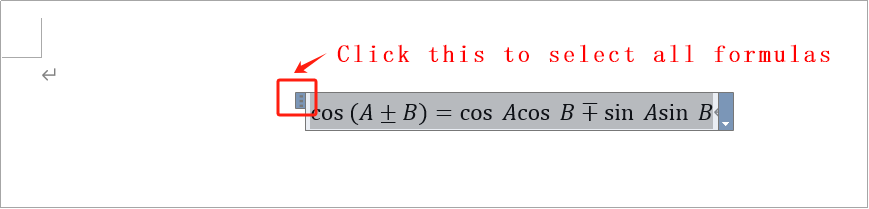
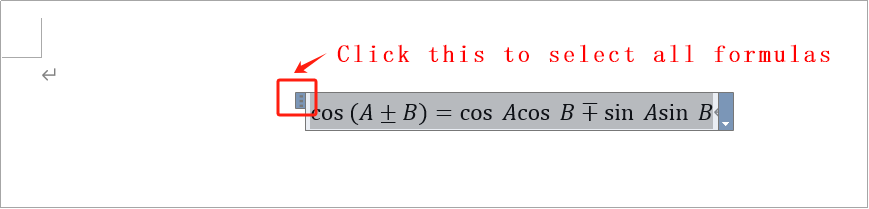
Note: To select a formula in the document, please click the three dots in the upper left corner of the formula field, that is, select the entire formula.

3.11 Edit Formula
(1) Select the formula in the document
(2) Click "Edit Formula", and the program will pop up the formula editor and set the currently selected formula as the default formula to be edited by the editor
Note: To select a formula in the document, please click the three dots in the upper left corner of the formula field, that is, select the entire formula.

3.12 Add Formula Numbering
(1) Full-document formula numbering

Automatically add full-document formula numbers to formulas

(2) Chapter + Internal Numbering
Perform the same operation as above
3.13 Settings

(1) Recognition Type Auto-detection: The system automatically detects the recognition object and recognizes it as a formula or document; Formula: The system recognizes the recognition object as a formula; Document: The system recognizes the recognition object as a document;
(2) Language Select the language used by the system, including Simplified Chinese and English.
(3) "File Save Directory": Set the directory where the plugin system saves files. All files saved by the plugin system are stored in the set directory.
(4) "Shortcut Key" settings: You can freely set the shortcut keys of the plugin system.
(5) "Document Visual AI Enhancement" settings: For specific instructions, see the official website description.
Note: When setting shortcut keys, try to avoid conflicts with the shortcut keys of the system and Word itself.
3.14 User Login/User Logout
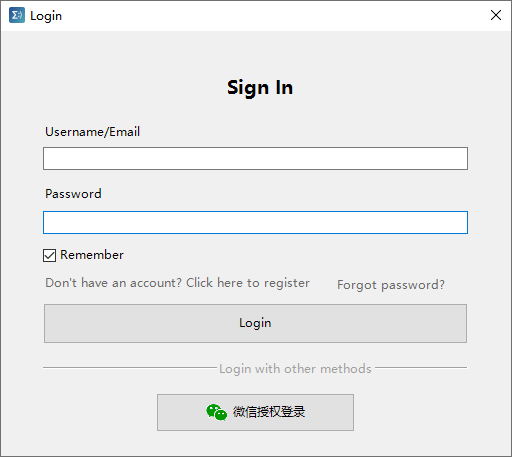
- Click "User Login", and the login interface will pop up;
- Enter the account name and password as prompted, then click "Login";
- After successful login, the "User Information" in the toolbar will display the account name and the word "Logged in", and the text of the "User Login" button will change to "User Logout";
Notes:
- You can use either the username or email address to log in;
- For WeChat authorized login and Google authorized login, follow the system prompts to operate;
- To register, please click "Don't have an account? Click here to register". The system will automatically open the official website for registration. Follow the system prompts to operate;
- To retrieve or change your password, please click "Have an account but forgot the password". The system will automatically open the official website for password retrieval. Follow the system prompts to operate;

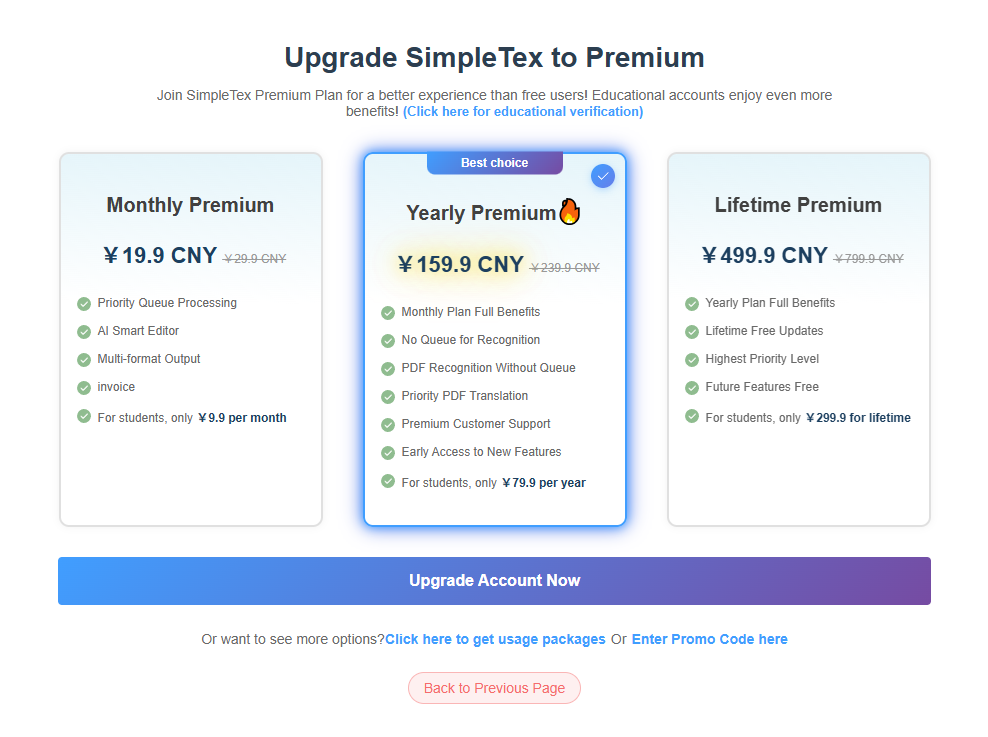
3.15 Account Upgrade
To unlock more benefits, upgrade your account.
3.15 User Center
- After successful login, click "User Center", and the system will automatically open the "User Center" on the official website for operation. Follow the system prompts to operate;

4. Special Notes and Tips
(1) Account benefits are completely consistent with those on the official website and PC client;
(2) The plugin system supports shortcut keys. The default shortcut keys of the plugin system are:
Screenshot Recognition: Ctrl+Shift+Z
Paste Image Recognition: Ctrl+Shift+X
Recognize Selected Image: Ctrl+Shift+C
(3) For screenshot recognition, you can use other screenshot tools, such as WeChat screenshot, QQ screenshot, system screenshot, etc., then return to Word and click "Paste Image Recognition";
(4) If the formula font does not use the abc text mode, Word only supports two formula fonts (Word is generally installed with only two default formula fonts). Otherwise, to modify the font, you must use fonts that support the Opentype Math format standard. For other formula-supported fonts, please search, download and install them by yourself.